How to Set Up Buzz VPN on Mac with Happ
Install Happ from the Mac App Store, get your subscription link from the Buzz VPN bot and connect in two minutes. Step by step with screenshots and fixes.
You need a subscription link from the bot and the free Happ app. The guide works for MacBook, iMac and Mac mini on macOS 12 or later.
What you need
- A Mac with an internet connection.
- A subscription link from the Buzz VPN bot. If you don't have a subscription yet, the bot starts a free 3-day trial with all features.
- The Happ app from the App Store.
Step 1. Get your subscription link from the bot
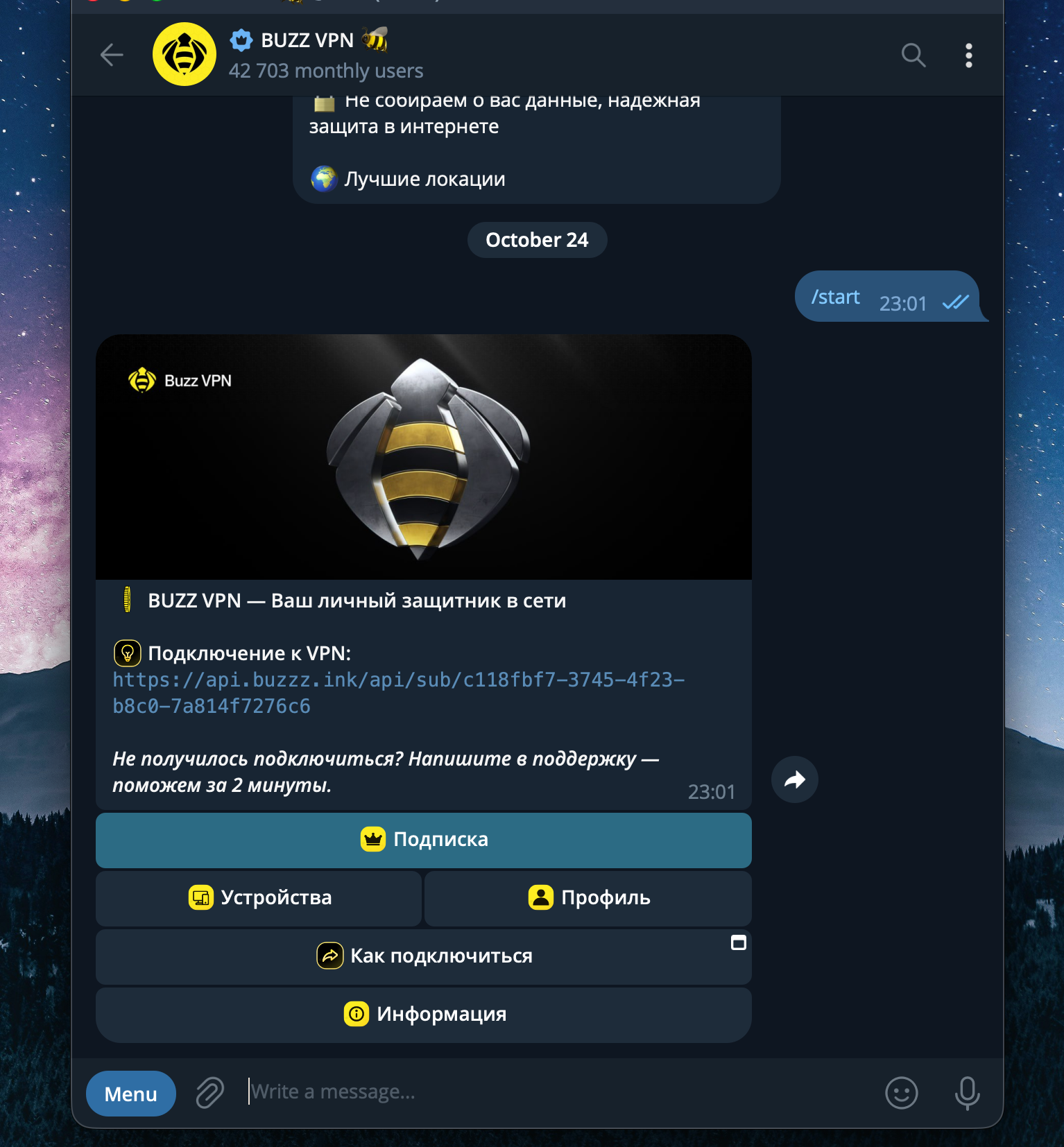
- Open the Buzz VPN bot in Telegram on your Mac and click "Start".
- Start the trial or choose a plan.
- The bot sends a subscription link that looks like
https://api.buzzz.ink/api/sub/…. Click it to copy the whole thing.
Step 2. Install Happ
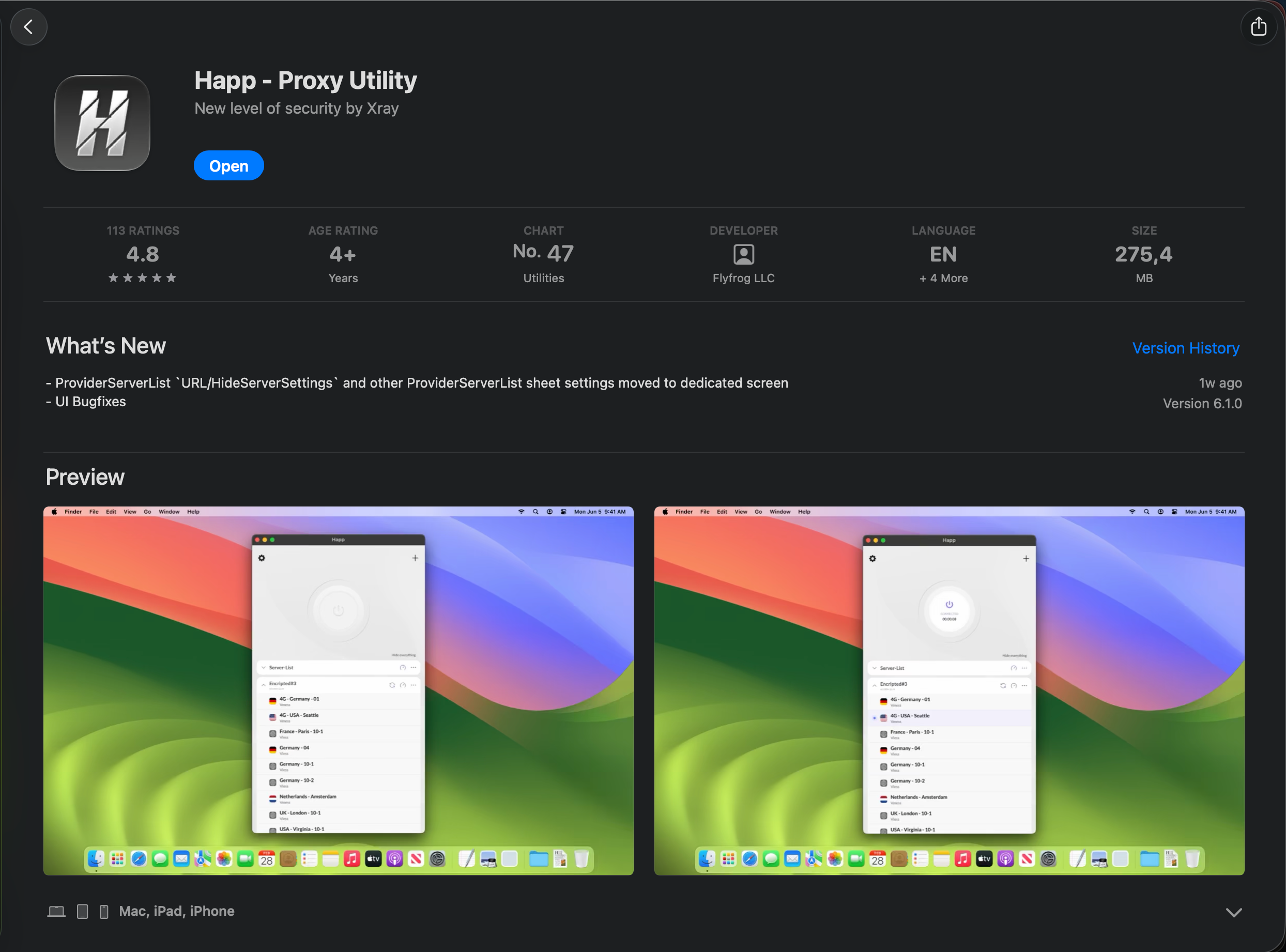
- Open the App Store on your Mac and install Happ — Proxy Utility. If the app isn't available in your App Store, download the dmg from the developer's site — see "If it doesn't work" below.
- Wait for the install to finish and open Happ from the Applications folder or via Spotlight.
All official Happ builds are listed on the developer's site. Don't install Happ from anywhere else.
Step 3. Add the subscription
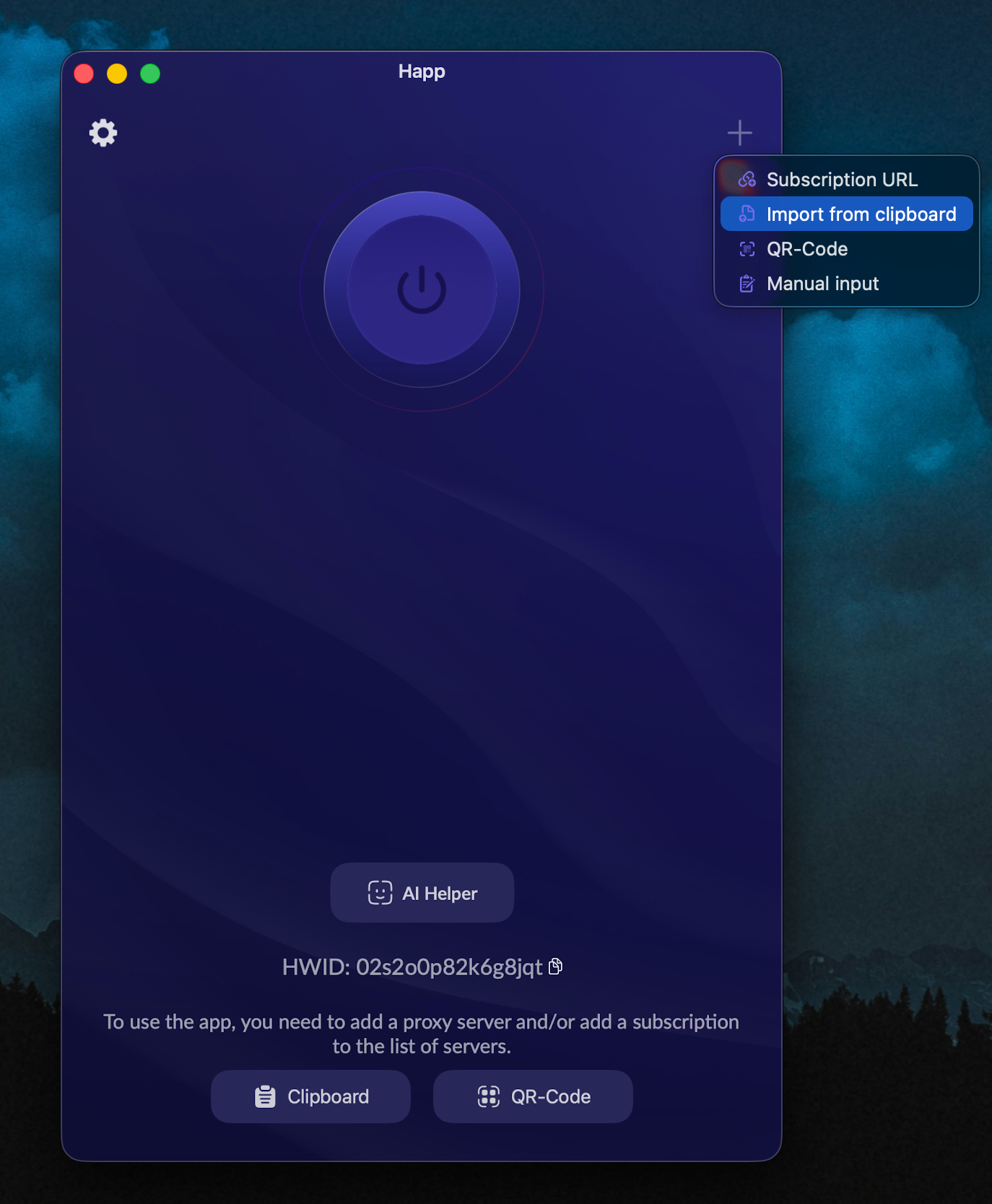
- In Happ, click "+".
- Choose "Paste from clipboard" — the app picks up the link you copied.
- A Buzz VPN subscription with its servers appears in the list.
Step 4. Connect
- Click "Connect".
- macOS asks for permission to add a VPN configuration — click "Allow" and confirm with your Mac password or Touch ID.
- Wait for the status to change to "Connected".
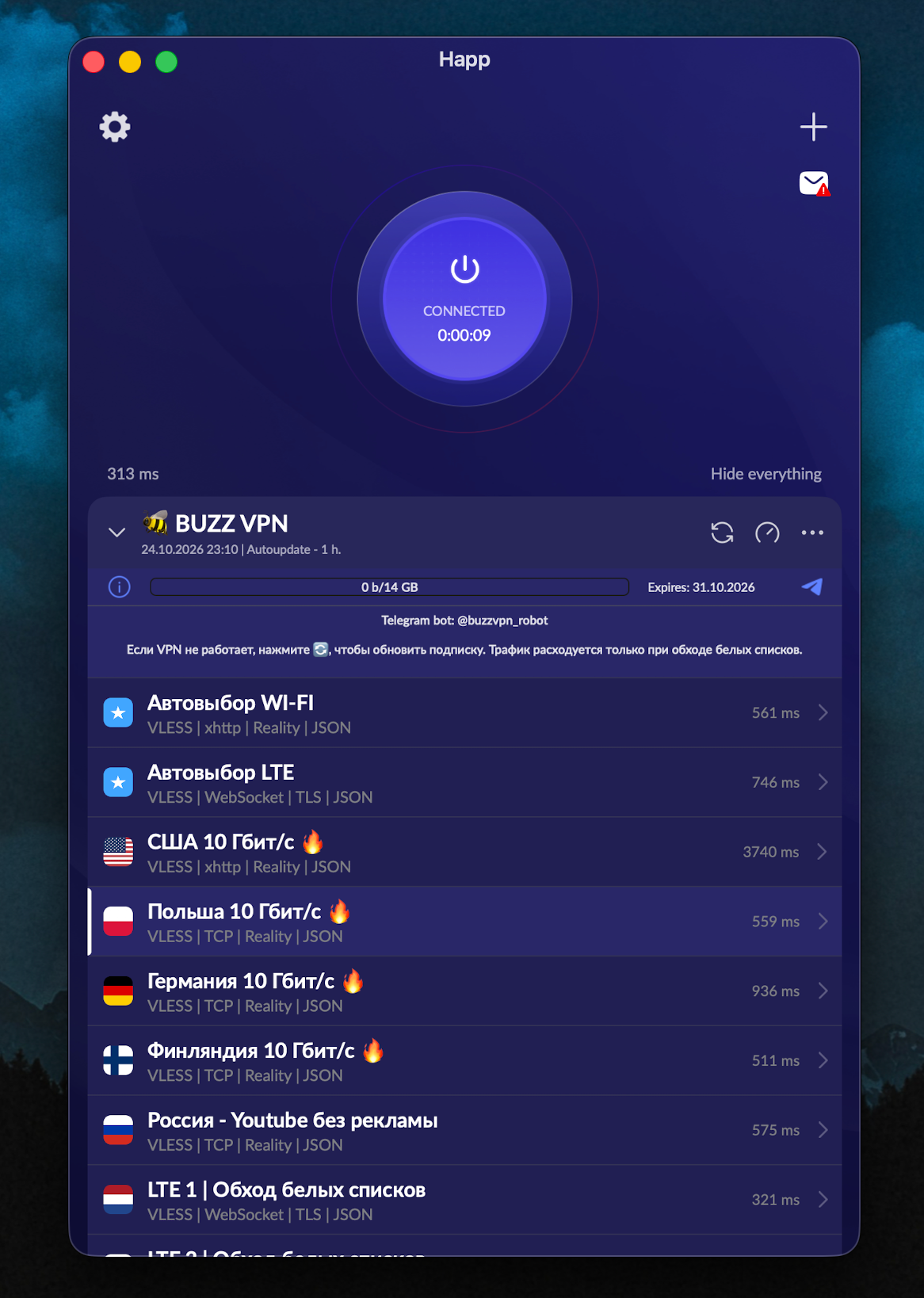
Permission is requested only once. After that, the VPN toggles on and off with a single button in Happ.
Check the connection
- Open System Settings → VPN (on macOS 12 — Network): Happ should show as "Connected".
- Open a site or service that wasn't working — it should load now.
- For a precise check, open an IP check page: the address should differ from your usual one.
If it doesn't work
"Paste from clipboard" adds nothing. The link wasn't copied, or only partially. Go back to the bot, click the link again and repeat step 3.
The subscription was added, but the server list is empty. Happ couldn't fetch the subscription. Make sure you're online and refresh the subscription in the app. If the list is still empty, copy the link from the bot again.
The permission prompt didn't appear, or you clicked "Don't Allow". Open System Settings → VPN, remove the Happ configuration and click "Connect" in the app again — macOS will ask for permission once more.
Status stays on "Connecting". Quit any other VPN or proxy apps running on the Mac — they interfere with each other. Then turn Wi-Fi off and on and click "Connect" again.
Sites won't open after the Mac wakes from sleep. Disconnect the VPN in Happ, wait five seconds and connect again. If that doesn't help, delete the subscription in Happ and add the link from the bot once more.
Happ isn't in the App Store or won't install. Download the macOS dmg from the developer's site. If macOS refuses to open the app, go to System Settings → Privacy & Security and click "Open Anyway".
Guides for other devices are in the guides section.